Skip to content
  • Demo
  • Docs
  • Pricing
  • Contact

Start free trial

We bring together everything that’s required to build websites. Reach more customers, save time and money, and boost sales.

Edit Content

    • Facebook
    • Instagram
    • Twitter
    Purchase Theme

    Installation

    1
    • Installation Guide

    Getting Started

    1
    • Getting started

    Configuration Steps

    2
    • Setup Google Cloud Vision API
    • Xise Settings

    Xise Dashboard

    4
    • Dashboard
    • Index WooCommerce Product
    • Analytics
    • Xise Logs

    Integration

    1
    • Add Image Search button
    • Home
    • Docs
    • Installation
    • Installation Guide

    Installation Guide

    < 1 min read

    Requirements #

    • WooCommerce 5.0 or above
    • WordPress 5.7 or above
    • PHP 7.4 or higher

    Installation steps #

    1. Download the latest version.
    2. Log in to your WordPress admin interface.
    3. Click on Plugins from the left hand menu.
    4. Click on “Add new”.
    5. Click on “Upload”.
    6. Browse to the directory you downloaded the plugin to and click Install.
    7. After WordPress has finished unpacking the file click on “Activate Plugin”.
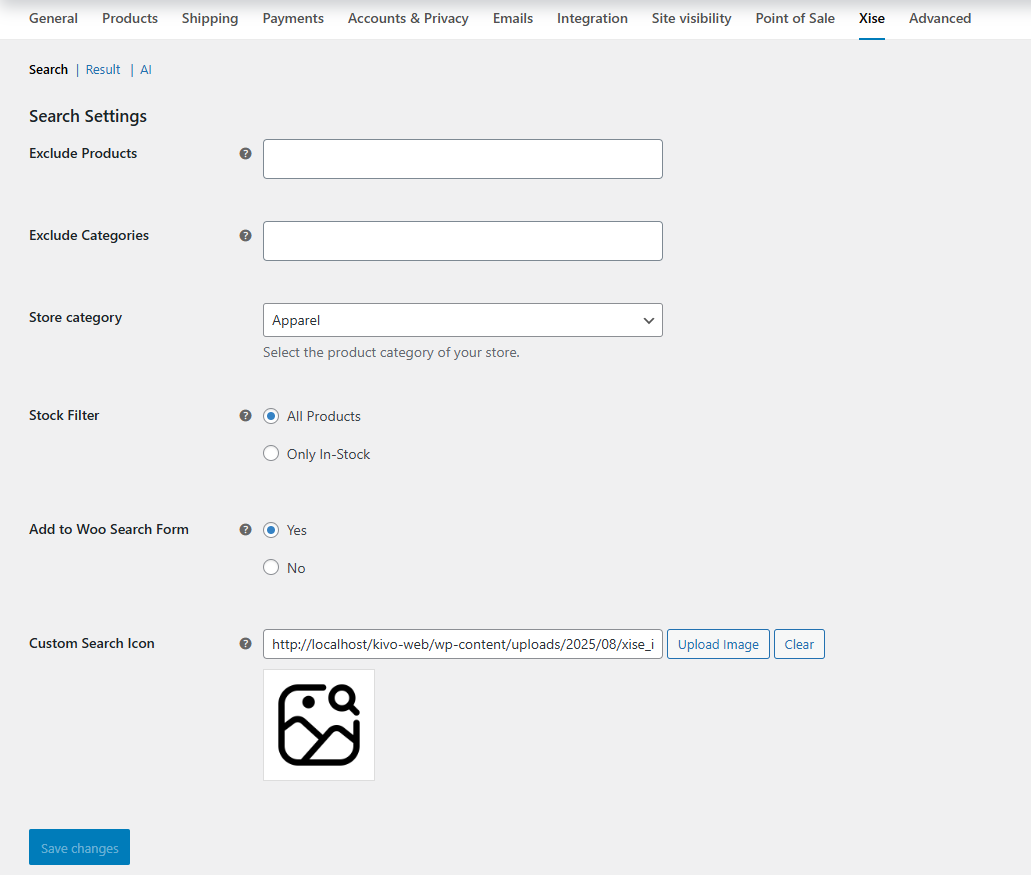
    After the plugin has been activated you will notice a new menu item on the left hand under the WooCommerce navigation menu labelled Xise. All the plugin settings comes in WooCommerce->Settings under “Xise” tab.
    Updated on August 8, 2025

    What are your Feelings

    • Happy
    • Normal
    • Sad
    Share This Article :
    • Facebook
    • X
    • LinkedIn
    • Pinterest

    Powered by BetterDocs

    Leave a Reply Cancel reply

    Your email address will not be published. Required fields are marked *

    Table of Contents
    • Requirements
    • Installation steps

    A powerful AI-driven image search plugin for WooCommerce that lets customers find products by uploading images.

    Features
    • Image Search
    • Auto indexing
    • Search Analytics
    • Seamless Integration
    Resources
    • Support center
    • Documentation
    • Faqs
    • Demo
    Get in touch
    • support@xiseai.com

    © XiseAI.com. All Rights Reserved.

    • Terms & Conditions
    • Privacy Policy